

Key takeaways
- Keep a plugin register listing every plugin, why it is installed, who maintains it and when it was last updated.
- Delete plugins you do not use; deactivated plugin code still sits on the server.
- Apply security updates within days, testing on a staging copy first when the plugin is critical to the site.
- Turn on two-factor login for administrators and give every other user the lowest role that lets them work.
- Keep offsite backups and practice a restore, so a bad update or a hack is a short outage rather than a disaster.
Part of our guide: WordPress vs Shopify vs headless: choosing a website platform
Why are plugins the weak point in WordPress plugin security?
Plugins are the weak point because each one is third-party code running with the same access as WordPress itself. A single flaw in one plugin, such as a form that does not check its input or an admin action that does not check permissions, can expose the whole site.
WordPress core is reviewed by a large team and patched on a regular schedule. Plugins vary widely. Some are maintained by companies with security teams; others by one developer who has moved on. The classic web flaws described in the OWASP Top 10 (opens in a new tab), such as injection, broken access control and cross-site scripting, show up in plugin code because plugins handle forms, uploads, payments and logins.
This is why WordPress plugin security is mostly a maintenance problem rather than a technical one. The fixes are usually released quickly. Sites get hacked because nobody applied them, or because an abandoned plugin never received one.
How do you check if a WordPress plugin is safe before installing it?
Check a plugin's maintenance record before you install it: recent updates, compatibility with your WordPress version, active support and a clear owner. A plugin that has not been updated in a long time is a risk even if it works today.
On the plugin's directory page, look at the last updated date, the tested-up-to version, the number of active installations and how the author answers support threads. For paid plugins, check that the vendor publishes a changelog and a way to report security issues. Prefer one well-maintained plugin over three small ones that each do part of the job. Then ask the simplest question: can this feature be done without a plugin at all, through the theme, a few lines of code or a service you already pay for?
- Updated within the last few months, with a public changelog.
- Tested with your current WordPress version.
- An identifiable author or company and a security contact.
- Support questions answered, especially reports of bugs.
- Only the features you need, without bundled extras.
- From the WordPress.org directory or the vendor's own site, never a nulled copy.
Why should you keep a plugin register?
A plugin register tells you, in one place, what is installed, why and whether it is still safe to keep. Without one, plugins pile up over years and nobody knows which are needed.
Keep it as a simple spreadsheet with one row per plugin: name, purpose, owner on your side, free or paid, licence renewal date, last update date and the date you last reviewed it. Review it monthly. Any plugin with no clear purpose is deleted. Any plugin that has gone a long time without an update, or has been closed in the directory, is replaced. WordPress's own hardening guidance (opens in a new tab) makes the same point: keep plugins updated and delete the ones you do not use.
| Column | Decision it supports |
|---|---|
| Purpose | Keep, replace or delete |
| Last update date | Is the plugin still maintained? |
| Licence renewal | Will paid updates stop? |
| Owner on your side | Who approves changes? |
| Last reviewed | Is the register current? |
Should you turn on automatic updates for plugins?
Turn on automatic updates for low-risk plugins and handle critical ones by hand after a quick test. That balance closes most security holes quickly without letting an untested update break checkout or forms.
Since WordPress 5.5, administrators can enable auto-updates plugin by plugin from the Plugins screen, and WordPress sends an email after each attempt. Auto-updates suit simple utility plugins. For plugins that run payments, bookings, memberships, forms or page layout, apply updates on a staging copy first, check the key pages and flows, then update live. Security releases should go out within days, not at the next quarterly review.
Before enabling auto-updates, make sure you can roll back. WordPress's documentation on plugin and theme auto-updates recommends regular automatic backups for exactly this reason.
How do you limit the damage if a plugin is flawed?
Limit damage by reducing what an attacker can do with a foothold: fewer administrators, stronger logins, no code editing from the dashboard and file permissions that stop writes where none are needed.
Give every user the lowest role they need. Editors do not need administrator rights, and old staff or agency accounts should be removed on the day they leave. Turn on two-factor authentication for every administrator. Add define('DISALLOW_FILE_EDIT', true); to wp-config.php so the built-in theme and plugin editors are disabled, which WordPress's hardening guide describes as removing the edit_themes, edit_plugins and edit_files capabilities. Restrict the database user to the permissions WordPress needs, and keep the server's PHP version supported by its maintainers.
A web application firewall at the host or CDN can block many known attack patterns before they reach WordPress. Treat it as a second layer, not a reason to delay updates.
A WordPress plugin security routine: weekly, monthly, quarterly
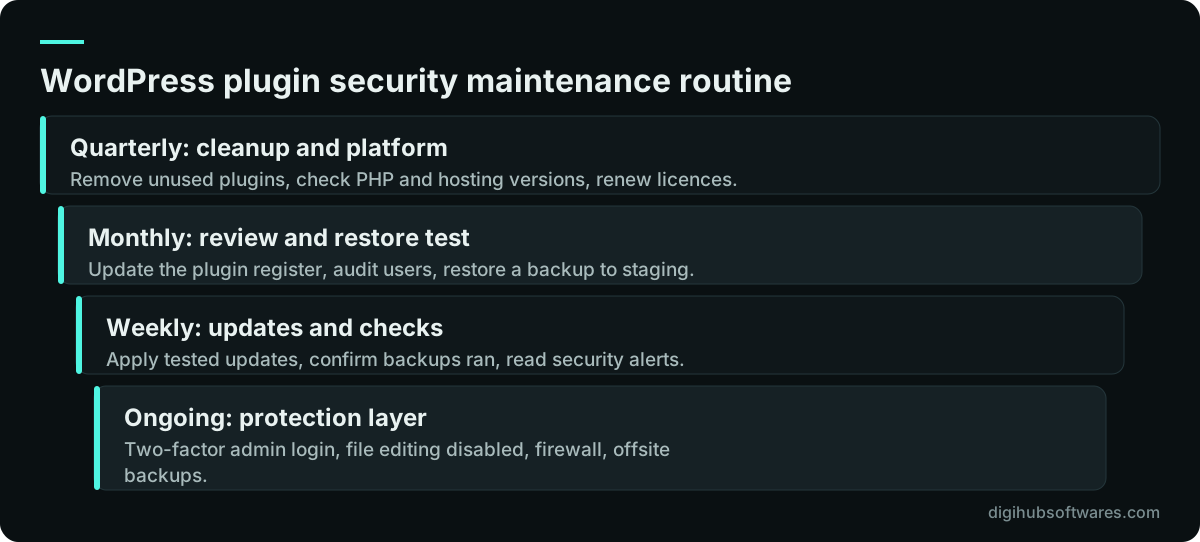
A WordPress plugin security routine works because it turns good intentions into dates on a calendar. The figure below is the schedule we follow on maintained sites; adjust the cadence to how much the site matters to revenue.
Weekly work is short: apply updates, check that backups ran and look at the security log. Monthly work is the review: the plugin register, user accounts and a restore test on a copy of the site. Quarterly work steps back: remove what is no longer needed, check hosting and PHP versions, and confirm that someone still owns each paid licence.
What should you do if a plugin gets your site hacked?
If a site is compromised, contain it first, then clean and patch, then find how the attacker got in. Restoring a backup without closing the hole usually leads to a second compromise.
Put the site into maintenance mode or take it offline, change every administrator, hosting, database and FTP password, and revoke unknown users. Identify the vulnerable plugin, update or remove it, and restore clean files from a backup taken before the compromise or from fresh copies of core, theme and plugins. Scan the uploads folder for PHP files, which should not be there. Request a review in Google Search Console if Google flagged the site. If personal data may have been exposed, check your reporting duties under the data protection law that applies to you, such as UK GDPR with the ICO, and confirm the steps with your legal adviser.
When is it worth paying for WordPress maintenance?
Paying for maintenance is worth it when nobody on your team has the time to follow a routine every week, or when the site carries forms, bookings or sales that cost money when they stop.
Digihub's website maintenance service runs this routine for you. Care plans on our website pricing page start at $49 a month for core, theme and plugin updates, daily backups, uptime and security monitoring. If the site needs deeper work, such as replacing abandoned plugins with custom code, our WordPress development team can rebuild that feature properly. If you are still deciding whether WordPress is right for you at all, our comparison of WordPress, Shopify and headless sets out how the security work differs on each, and a redesign is a good moment to clean up plugins, as our website redesign SEO checklist explains.
Sources and further reading
Official documentation and guidance if you want to read more about this topic.
Related guides and services
Questions readers ask
How many plugins is too many for WordPress?
There is no safe number; quality and maintenance matter more than count. A site with twenty well-maintained plugins can be safer than one with five abandoned ones. Still, every plugin adds code to update and a possible flaw, so keep only plugins with a clear purpose, remove overlaps and delete anything that is deactivated or unused.
Is a deactivated plugin still a security risk?
Yes, a deactivated plugin can still be a risk because its files remain on the server, and some vulnerabilities can be reached by requesting those files directly. It also stops getting attention, so updates are often missed. If you do not need a plugin, delete it completely rather than leaving it deactivated, and reinstall a fresh copy later if needed.
Do I need a security plugin for WordPress?
A security plugin can help with login protection, file change alerts and scanning, but it does not replace updates, good passwords, two-factor login and backups. Many hosts and CDNs also offer a firewall at the network level, which blocks attacks before they reach WordPress. Choose one well-maintained tool rather than stacking several that overlap.
Are nulled premium plugins safe to use?
No. Nulled plugins are pirated copies of paid plugins, and they are a common way to plant backdoors or malware on a site. They also cannot receive official updates, so known flaws stay open. Buy the licence from the vendor, or choose a free alternative from the WordPress.org directory that meets your needs.
How quickly should plugin security updates be applied?
Apply plugin security updates within days of release, and faster when the flaw is being actively exploited. Attackers often scan for vulnerable sites soon after a fix is published. For critical plugins such as checkout or forms, test the update on a staging copy the same day, then apply it to the live site.