

Key takeaways
- Check your version's end of standard support on Odoo's support page, then plan to finish well before that date.
- List every custom and third-party module first, because none of them move to the new version until their code is ported.
- Request more than one upgraded test database and test real business flows end to end, not just screens.
- Rehearse the full cutover the day before and pick a window when nobody needs the system.
- Moving from Odoo 18 or earlier to 19 or 20 changes inventory valuation accounting, so bring your accountant into testing.
Part of our guide: Odoo implementation guide: how to implement Odoo ERP from scoping to go-live
What is Odoo upgrade planning?
Odoo upgrade planning is the work of moving a live database from one major version of Odoo to a newer one, such as Odoo 17 to Odoo 20, while sales, stock and accounting keep running. The database conversion itself is mostly automated. The planning is everything around it: what you are running today, what will break, who tests what, and when you switch.
An upgrade is not the same as a new implementation. Your data, users, history and settings move across. What changes is the code underneath, the screens your team uses and, in some versions, the way certain features behave. Odoo's own upgrade documentation (opens in a new tab) is clear about what an upgrade does not do: it will not downgrade you, switch you from Community to Enterprise, move you between hosting types, or bring data in from another ERP. Each of those is a separate project.
A good plan answers four questions before anyone requests a test database. Which version are we going to? What custom or third-party modules do we depend on? Which business flows must work on day one? And what is our fallback if the cutover goes wrong? If you are still choosing apps and hosting, start with our Odoo implementation guide, then come back here.
How long is each Odoo version supported?
Each major Odoo version gets three years of standard support from its release, which covers bug fixes, security updates and helpdesk help. After that, extended support is available for an extra fee, but only on Odoo.sh for a limited number of versions and on-premise. Odoo Online does not offer it.
Odoo 20.0 was released in September 2026 and is the current major version at the time of writing. The table below shows the dates Odoo publishes on its standard and extended support page (opens in a new tab). Check that page again when you plan, because dates marked planned can move.
One rule matters for timing: Odoo states you can upgrade from any version to any major version still under standard support, or one that left standard support less than six months ago. So a database on an old version can jump straight to Odoo 20 rather than stepping through each release, although a smaller gap is usually an easier upgrade.
| Version | Released | End of standard support |
|---|---|---|
| Odoo 20.0 | September 2026 | September 2029 (planned) |
| Odoo 19.0 | September 2025 | September 2028 (planned) |
| Odoo 18.0 | October 2024 | September 2027 (planned) |
| Odoo 17.0 | November 2023 | September 2026 |
| Odoo 16.0 | October 2022 | September 2025 |
When is an upgrade mandatory? It depends on your hosting
Whether you must upgrade, and when, depends on where Odoo runs. On Odoo Online the schedule is set for you. On Odoo.sh you get a grace period. On your own server the choice is yours, along with the risk of running an unsupported version.
If you are deciding between these options as part of the upgrade, our comparison of Odoo Online, Odoo.sh and self-hosting covers the trade-offs. Note that changing hosting type is a separate step from the version upgrade, so plan it as its own task with its own test.
- Odoo Online: a database on a major version must be upgraded every two years, and one on a minor SaaS version (such as 19.2) a few weeks after the next release. Odoo notifies you first and runs an automatic upgrade if you take no action by the due date.
- Odoo.sh: after the three years of standard support, you have another two years to complete the upgrade, and Odoo notifies you when it becomes required.
- On-premise: you can stay on a version indefinitely, but you lose security fixes once support ends unless you pay for extended support.
How do you upgrade Odoo with custom modules?
Custom modules decide your timeline. Odoo will not upgrade a database that contains custom modules until a version of those modules exists for the target release, so porting the code is the critical path of most upgrade projects.
Odoo's guide to upgrading a customized database (opens in a new tab) recommends freezing development when the upgrade starts, apart from bug fixes. Every feature you add during the upgrade has to be ported and tested again. The freeze is also a chance to review each customization against the new version's standard features. If Odoo 20 now does what a custom module was built for, retiring that module is cheaper than porting it.
The recommended order is to request an upgraded database, make each module install cleanly on an empty database in the new version, then make it install on the upgraded copy of your data, and only then test the business flows. On Odoo.sh, a staging branch in upgrade mode restores the upgraded backup and updates your custom modules on every commit, which helps developers iterate. If you need modules ported or rebuilt, that is the core of our Odoo migration service.
Community databases follow a different route. Odoo's upgrade service sits under the Enterprise agreement, so Community users usually rely on OpenUpgrade, the open-source migration project of the Odoo Community Association, or on a custom data migration. OpenUpgrade publishes a module coverage list for each version step, and that list is the first thing to check.
A step-by-step Odoo upgrade checklist
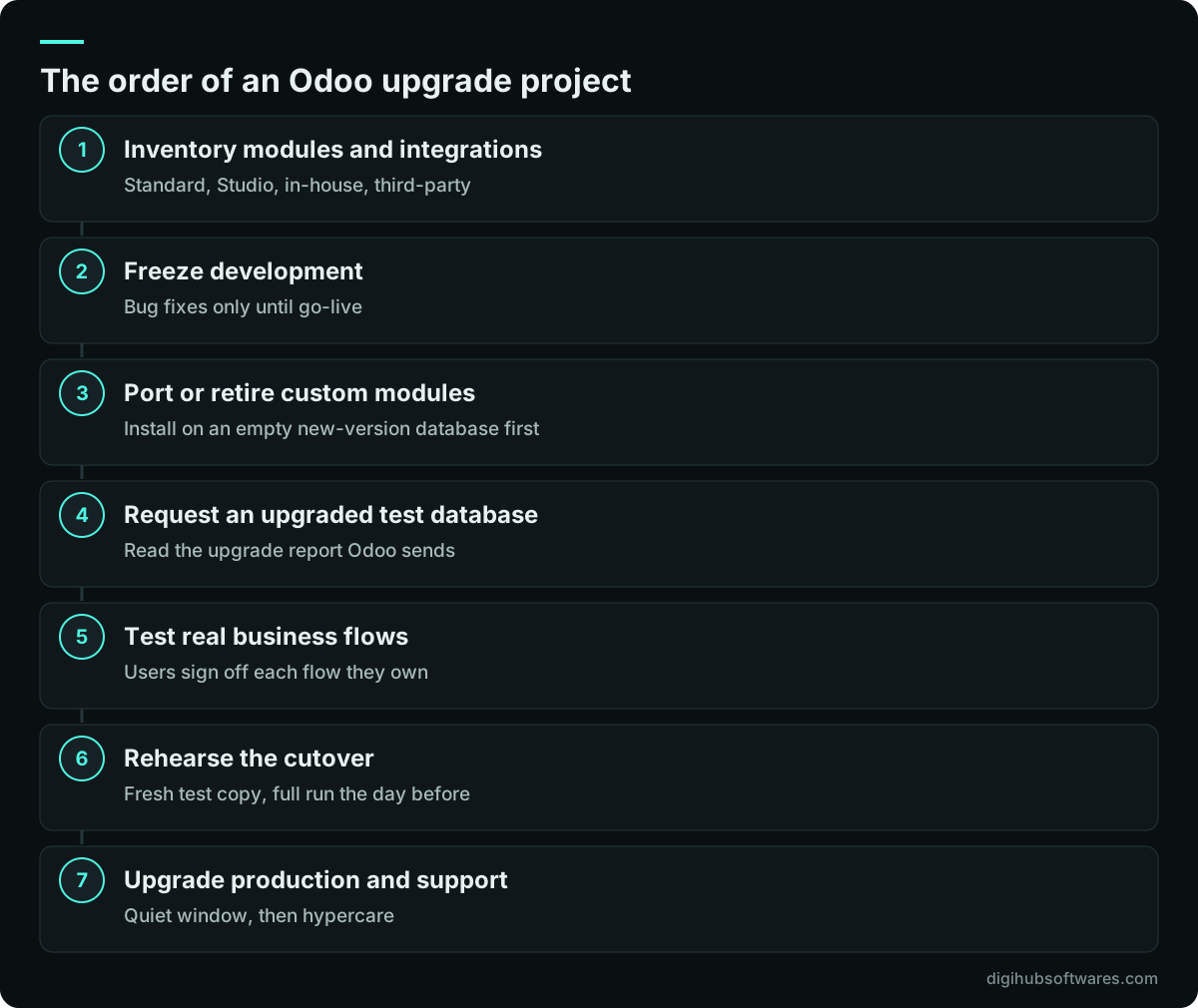
A reliable upgrade follows the same sequence whatever the version: take stock, port, test, rehearse, cut over, support. The figure below shows the order we work in, and each step has a clear output before the next one starts.
The inventory step deserves more time than people give it. Export the list of installed modules, mark each one as standard, Studio, in-house or third-party, and note who maintains it. Add every integration: payment providers, couriers, banks, eCommerce connectors, BI tools and anything that calls the Odoo API. An integration that nobody listed is the most common surprise on go-live day.
How should you test an Odoo test database upgrade?
Test the business, not the screens. Odoo's documentation suggests following one product from purchase to receipt, sale, delivery, invoice and credit note, and comparing each step with production. That kind of end-to-end run finds problems that clicking through menus misses.
Remember that test databases are neutralized. Scheduled actions are disabled, outgoing mail is replaced with a fake server, payment providers and carriers are switched to test mode, and bank synchronization is off. So a test pass does not prove that your emails, payments and bank feeds work. Test those separately, with sandbox credentials where the provider offers them.
When the upgrade finishes, Odoo attaches an upgrade report to the email and posts it in Discuss for administrators. Read it before testing starts, because it lists changes the new version introduced. Changes to standard views and fields cannot be reverted case by case, so plan short training for anything that moved.
- Reports: invoices, sales orders, delivery slips and any custom PDF layouts print correctly.
- Records: users can create and edit sales orders, purchases, invoices, contacts and products.
- Integrations: every API, EDI, eCommerce and courier link connects and posts data.
- Automation: automated actions, server actions and scheduled jobs run as expected.
- Accounting: taxes, currencies, bank journals, fiscal year and key reports match production.
- Exports and translations: saved filters, exports, mail templates and translated terms still work.
Which version changes need extra attention in an Odoo 20 upgrade?
Every release changes something your team relies on, and the release notes plus the upgrade report are where you find it. One change stands out for anyone coming from Odoo 18 or earlier: inventory valuation accounting was reworked in Odoo 19, and Odoo 20 carries that design forward.
Before Odoo 19, perpetual valuation posted a journal entry for every stock movement. Since Odoo 19, perpetual valuation updates the accounts when bills and invoices are posted, and a stock closing entry handles the gaps. The old stock interim accounts are no longer used, so any balance left in them must be moved to the stock valuation account. Odoo provides a server action for this after the upgrade, or you can post a manual journal entry. This is a job for your accountant, not just your developer, and our guide to Odoo inventory valuation explains the new settings.
Give the finance team a full month-end close in the test database. If they can close a period, reconcile the bank and produce the reports they file, the upgrade is close to ready.
How do you plan the cutover so the business keeps running?
Pick a quiet window, freeze data entry, upgrade, check, and reopen. Your production database is unavailable while the upgrade runs, and on Odoo Online there is no way back to the old version once it completes, so the plan must be rehearsed rather than improvised.
Odoo recommends requesting fresh test databases during a long project, because both the standard scripts and your data keep changing, and rehearsing the full process the day before. Stop users from entering data once the production copy is taken, since later changes will not appear in the upgraded database. On-premise teams also need to merge the upgraded filestore with the production filestore, because the upgrade platform receives the database without its attachments.
Write the cutover as a short runbook with names against each task: who announces the freeze, who requests the upgrade, who runs the smoke tests, and who decides to reopen. Agree the rollback point in advance. After reopening, keep a few days of close support for users while they find their way around changed screens. Ongoing help of that kind is part of our Odoo support and maintenance work.
What drives the cost of an Odoo upgrade?
The number and complexity of custom and third-party modules drive most of the cost, followed by integrations and the depth of testing. A database running only standard apps is a small project. One with many in-house modules, old data problems and several integrations is a larger one.
With an Odoo Enterprise subscription, Odoo's upgrade service is included for standard apps, Studio customizations while Studio stays installed, and code covered by a maintenance of customizations subscription. It does not cover cleaning old data, porting in-house or third-party modules, or training. Those are where partner and internal effort goes.
Our own price list shows a version upgrade of a standard database from $1,500 (£1,150, AED 5,500 or PKR 250,000), with custom modules quoted after we review them. The full list is on our Odoo pricing page. For a wider view of what drives Odoo project costs, see how to budget an Odoo implementation.
Sources and further reading
Official documentation and guidance if you want to read more about this topic.
Related guides and services
Questions readers ask
How long does an Odoo version upgrade take?
It depends mainly on custom modules. A database with only standard apps can often be tested and upgraded within a few weeks, because the work is mostly testing and training. Each custom or third-party module adds porting and retesting time. Your Odoo upgrade planning should start from the module inventory, since that list sets the real timeline, and should leave room for at least two rounds of test databases.
Can I skip versions, for example from Odoo 16 to Odoo 20?
Yes, as long as the target is a major version under standard support. Odoo's documentation allows an upgrade from any version to any major version still under standard support, or one that left it less than six months ago. Skipping versions saves repeated projects, but the gap is larger, so expect more changed screens, more porting work on custom modules and a longer testing phase.
What happens if I stay on an old Odoo version?
On your own server you can stay as long as you like, but after standard support ends you stop getting bug fixes and security updates unless you pay for extended support. On Odoo.sh you get two extra years after standard support before an upgrade is required. On Odoo Online, upgrades are mandatory on a set schedule and run automatically if you do not act.
Is the Odoo upgrade free with Enterprise?
The technical upgrade of standard apps is included with an Odoo Enterprise subscription, together with Studio customizations and code under a maintenance of customizations subscription. What is not included is porting in-house or third-party modules, cleaning old data and training users. Those usually make up most of the effort, so budget for them separately even when Odoo's part costs nothing extra.
Do I need a test database before upgrading production?
Yes. Odoo recommends requesting an upgraded test database first, testing your business flows on it, reporting any issues and only then upgrading production. Going live without testing risks users who cannot complete daily tasks and broken customer-facing flows such as eCommerce checkout. Request a fresh test copy close to go-live too, because your data and Odoo's scripts keep changing.