

Key takeaways
- Set up units of measure, product categories and work centers before you create a single BoM.
- Build multilevel products from the lowest sub-assembly up, so each level can be planned and costed on its own.
- Choose the BoM type deliberately: Manufacture for real production, Kit for bundles, Subcontracting for outsourced builds.
- Put real hourly costs on work centers and employees, or the cost of each manufacturing order will be wrong.
- Use the BoM Overview before go-live to check quantities, lead times and costs for every finished product.
Part of our guide: Odoo implementation guide: how to implement Odoo ERP from scoping to go-live
What is a bill of materials in Odoo?
A bill of materials, or BoM, is the recipe for a product: which components go in, in what quantities, and which operations turn them into the finished item. In Odoo it is the blueprint behind every manufacturing order, and it also drives kits, subcontracting, cost estimates and replenishment.
A BoM in Odoo has four parts. The Components tab lists materials and quantities. The Operations tab lists the work steps and the work center for each. The Instructions tab holds step-by-step guidance for operators. The Miscellaneous tab carries lead times, batch sizes and readiness rules. You find BoMs under Manufacturing, Products, Bills of Materials, or through the Bill of Materials smart button on any product form.
If you are planning a wider rollout, the Manufacturing app is one piece of a larger design. Our Odoo implementation guide explains how manufacturing fits with Inventory, Purchase and Accounting, and our Odoo manufacturing service covers the configuration work described here.
In what order should you do your Odoo bill of materials setup?
In any Odoo bill of materials setup, do the foundations first and the BoMs last. A BoM refers to products, units, work centers and costs, so if those are wrong or missing, every BoM built on them inherits the problem. The order below avoids most rework.
Pay close attention to units of measure. If you buy steel by the kilogram and consume it by the meter, or buy fabric by the roll and cut it by the meter, the conversions must exist before the BoM is written. Fixing units after manufacturing orders have run is painful.
- Products and categories: every component and finished item exists, with the right product type, inventory tracking and product category.
- Units of measure: purchase and consumption units set, with conversions defined where they differ.
- Settings: in Manufacturing, Configuration, Settings, enable Work Orders if you will use operations, plus By-Products if you need them.
- Work centers: names, working hours, capacity and hourly costs entered.
- Sub-assembly BoMs: the lowest-level items first.
- Finished product BoMs: built from components and sub-assemblies, with operations and instructions.
- Checks: open the BoM Overview for each finished product and confirm quantities, times and costs.
Manufacture, kit or subcontracting: which BoM type fits?
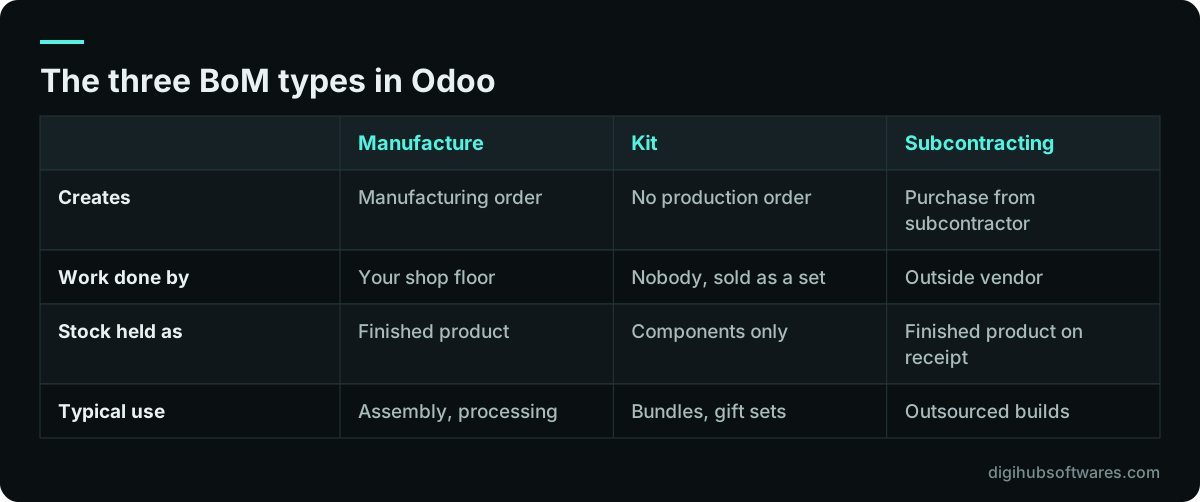
Odoo offers three BoM types, and the choice changes what happens on the shop floor and in stock. Manufacture this product creates manufacturing orders. Kit sells or ships a set of components as one item without producing anything. Subcontracting has an outside vendor build the product for you.
Kits are often misunderstood. When a kit is sold, it shows as a single line on the quotation and sales order, but the delivery order lists each component. Odoo's documentation recommends setting reordering rules and replenishment at the component level for kits, and notes that stock adjustments cannot be made at kit level. If you need to count and store the assembled item, it is a manufactured product, not a kit.
How do you set up components, variants and multilevel BoMs?
Add each component with its quantity for the BoM's output quantity, then decide whether the BoM covers one variant or all of them. One BoM can serve every variant of a product: the Apply on Variants column on each component line tells Odoo which variants use it, and a blank value means all of them.
That saves a lot of maintenance. A chair sold in three fabric colors does not need three BoMs. It needs one BoM where the frame, foam and screws apply to every variant and each fabric line applies only to its own color. The Consumed in Operation column links a component to the step that uses it, which matters if you want work to start before every component is in stock.
Products with sub-assemblies need a multilevel BoM. Odoo's documentation advises building from the bottom up: create the BoMs for the lowest-level parts first, then use those parts as components in the next level. Each sub-assembly then has its own lead time, can be stocked, and can be replenished by its own manufacturing orders or reordering rules. The BoM Overview shows the whole tree, with the operations and costs at each level.
How do operations and work centers replace routings in Odoo Manufacturing?
In current Odoo versions, the routing is simply the list of operations on the BoM's Operations tab. Each operation names the step, the work center where it happens, its expected duration and whether its cost is based on actual or theoretical time. Each operation belongs to one BoM, but the Copy Existing Operations button lets you reuse an operation from another BoM as an independent copy.
Duration can be fixed, using a default time you enter, or computed from tracked time on a set number of recent work orders. Start with fixed times from your best estimate, then switch busy operations to computed time once you have enough work orders to learn from. The work centers documentation (opens in a new tab) describes each work center field, and the table below shows the ones that matter most for planning and cost.
| Field | What it controls | Practical advice |
|---|---|---|
| Working Hours | When the work center is available | Default is 40 hours a week; match your real shifts |
| Time Efficiency | How fast work runs against standard | Below 100% for slower, older equipment |
| Setup and Cleanup Time | Time added before and after each order | Include changeovers you really see |
| Cost per hour | Machine and per-employee hourly rates | Agree the rates with finance |
| Alternative Workcenters | Where work goes if this one is busy | List only machines that can truly substitute |
| Allowed Employees | Who can work there | Use it for certified-operator machines |
| Product Capacities | Units processed at once per product | Useful for ovens, presses and batch tanks |
How do you add work instructions and quality steps to a BoM?
Add them on the Instructions tab of each operation. Each instruction is saved as a quality control point, and you choose its type: plain instructions, take a picture, register consumed materials, register production, print a label, pass or fail, a measurement within a tolerance, a worksheet or a spreadsheet. You can also attach a PDF that the operator sees at that step.
Keep instructions short and tied to the step where they are needed. A measurement check at the cutting operation, with a failure message telling the operator to raise a quality alert, does more good than a long document attached to the whole BoM. Because these steps live in the Quality app, they need that app installed. Check which edition includes it with our comparison of Odoo Community and Enterprise, and see our Odoo quality service if inspections are central to your process.
How does Odoo calculate the cost of a manufactured product?
Odoo adds the cost of components to the cost of operations. Component cost comes from each component's product cost. Operation cost is the expected duration multiplied by the work center's hourly cost and the per-employee hourly cost. The BoM Overview shows this estimate for any quantity, and greys out costs read directly from product records so you can tell them apart from computed ones.
Each manufacturing order then has two figures: the MO cost, which is the estimate from the BoM, and the real cost, which uses the components actually consumed, the time actually tracked and each employee's own hourly cost from the Employees app. When the two drift apart, either the BoM or the process needs attention.
How that cost reaches your balance sheet depends on the costing method on the product category: standard price, FIFO or average cost. That choice deserves its own discussion, which we cover in Odoo inventory valuation explained.
How do you keep BoMs accurate as products change?
Treat BoMs as controlled documents. Designs change, suppliers change and components get substituted, so you need a way to update BoMs in bulk and a record of what changed. Odoo provides both.
To replace a component across many products, filter the Bills of Materials list by that component, select the BoMs and use Compare BoMs, or open the component and use its Used In smart button, then change the component on the selected lines in one action. For formal change control, the PLM app adds engineering change orders, which track a proposed change, its approval and a new BoM version, and the Version field on the BoM shows which revision is live.
By-products belong on the BoM too. If production creates a saleable or reusable residue, add it on the By-products tab with an optional cost share, the percentage of production cost assigned to it. The cost shares of all by-products cannot exceed 100. If you run a factory in Pakistan, the UK or the UAE and want your Odoo bill of materials setup designed with your team, see how we work with manufacturing businesses.
Sources and further reading
Official documentation and guidance if you want to read more about this topic.
Related guides and services
Questions readers ask
Where are routings in newer versions of Odoo?
They are on the BoM itself. In current Odoo versions, the Operations tab of each bill of materials holds the sequence of operations, each linked to a work center with its duration and cost basis. There is no separate routing record. To reuse steps across products, use Copy Existing Operations, which makes an independent copy of an operation from another BoM.
Do I need one BoM per product variant?
No. One BoM can cover all variants of a product. On each component line, the Apply on Variants field limits that component to the variants that use it, and a blank value means every variant uses it. Operations have the same option. Create a separate BoM only when a variant is built in a genuinely different way.
What is the difference between a kit and a manufactured product in Odoo?
A kit is a set of components sold as one item. Nothing is produced, and the delivery order lists the components. A manufactured product is assembled through a manufacturing order and stocked as a finished item. Use a kit for bundles you pick from stock, and Manufacture when you build, store and count the assembled product.
Why is the cost of my manufacturing order wrong?
Usually because one of the inputs is missing. Check that components have a cost, that each operation has a realistic duration, and that the work center has hourly costs for the machine and per employee. Real cost also uses each employee's hourly cost. The BoM Overview shows the estimate line by line, which makes it quick to find the gap.
How long does an Odoo bill of materials setup take?
It depends on the number of finished products, BoM levels and operations, and on how clean your product data is. A small product range with single-level BoMs can be configured quickly once products and work centers exist. Multilevel products with routing, quality steps and variants take longer, mostly in gathering accurate quantities and times from the shop floor.